

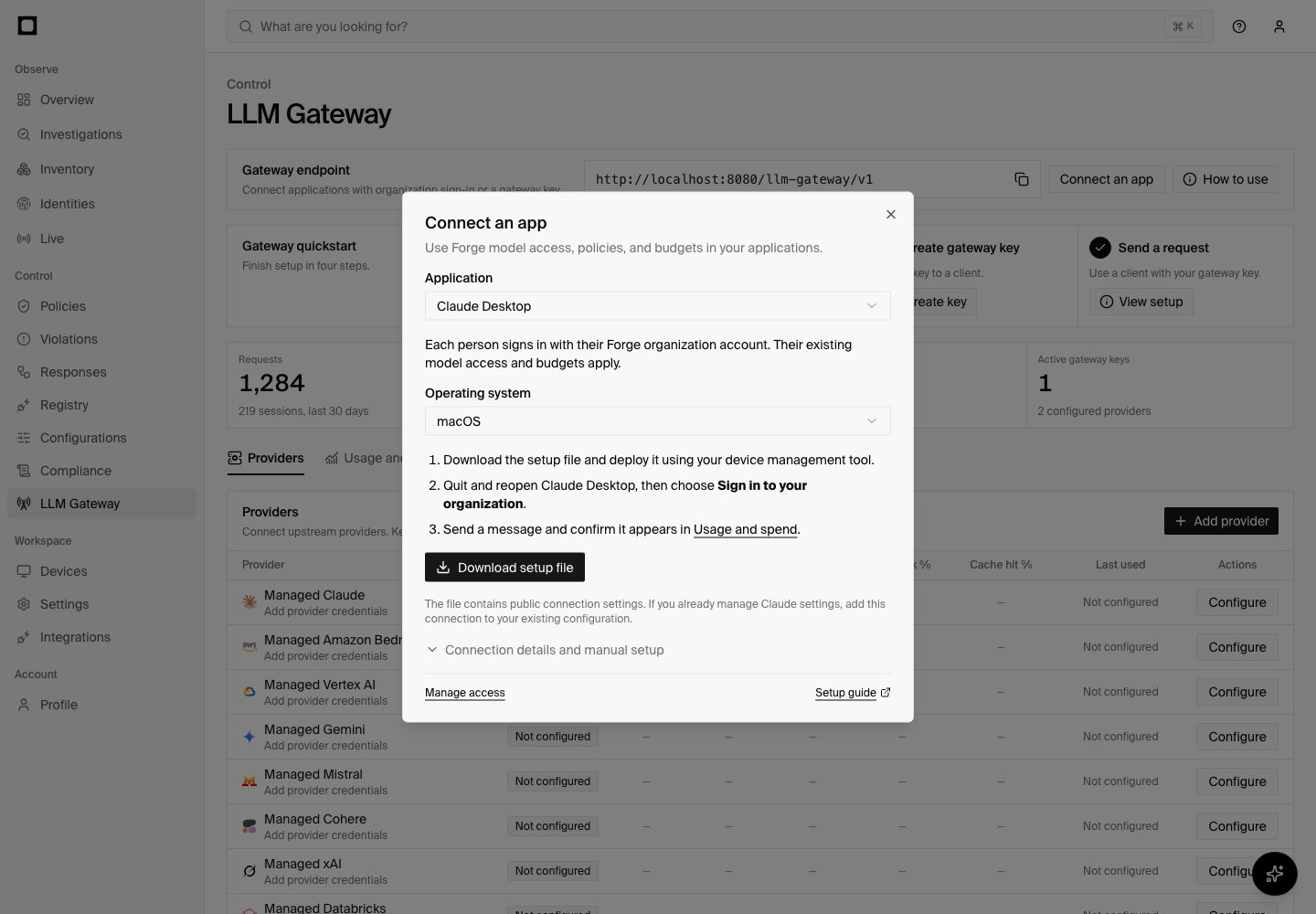
Connect Claude Desktop to Forge
Choose a connection method
Organization sign-in gives each person their own identity and applies their
current access assignment. An application must support the sign-in method
shown in Forge; a configurable API endpoint alone does not provide sign-in.
If your app is not listed, choose Another app · Gateway key. Applications
with a fixed provider endpoint may require Forge for devices
or a supported network integration instead of direct configuration.
Connect with organization sign-in
- Ask your administrator to assign an active access profile under Manage access.
- Select your app and follow its setup instructions. For Claude Desktop, choose your operating system and download the setup file.
- Sign in with your Forge organization account.
- Send a short message using an allowed model.
Claude Code with organization sign-in
An administrator must register a Claude Code public OAuth client for the Forge gateway audience before this choice appears. In Gateway → Connect an app → Claude Code, copy the sign-in command and run it on each user’s device. The command opens the Forge device authorization flow and stores that person’s refreshable gateway token in a separate Forge CLI profile. Download managed settings from the same dialog and distribute the file with your normal Claude Code settings deployment. It sets Forge as the Anthropic endpoint, enables discovery of models the user may access, and calls Forge CLI for a fresh token when Claude Code needs one. The file contains no user token. Keep Forge CLI installed and available to Claude Code on the device. Run/status inside Claude Code to check the gateway URL and helper, send a short
message, then confirm identity, model, tokens, and policy outcome in Forge
Usage. Each person’s Forge access profile and budget apply. The helper’s token
is for the inference gateway audience; a Forge REST API or MCP token cannot be
substituted.
Claude Code’s gateway connection guide
describes managed settings, apiKeyHelper, and model discovery. Claude Code
in the Claude Desktop app uses the Desktop third-party inference configuration
instead; follow Claude Desktop with Forge.
Connect with a gateway key
- Select Another app · Gateway key, then Create gateway key.
- Choose the access profile and identity for the application.
- Save the key securely. Forge displays its secret only once.
- Copy the endpoint from Gateway into the application’s provider settings and use the new key as its API key.
- Choose a model allowed by the access profile and send a short message.
/v1 themselves; follow their URL format
to avoid adding /v1 twice. Use a separate key for each application or service
so you can revoke it independently.
Confirm the connection
In Gateway → Usage, find your first request and confirm its identity, model, outcome, and usage. A downloaded configuration or completed sign-in alone does not confirm that model requests are working.Validate the actual request path
Use the base URL and authentication method shown for your selected app. For an OpenAI-compatible client, verify whether it expects a base ending in/v1;
for an Anthropic-compatible client, verify that it appends /v1/messages.
A duplicated /v1/v1 path is a client configuration error.
Check discovery, a short non-streaming request, streaming, and a tool round trip
when the app uses tools. Match the resulting request in Forge by timestamp,
identity, profile, model, and status. A successful models response alone does
not test inference, budget admission, or upstream credentials.